Detect hidden large files
The gigabytes Finder never shows you: forgotten downloads, stale caches, old disk images and build folders buried ten levels deep. Free Mac surfaces every one of them.
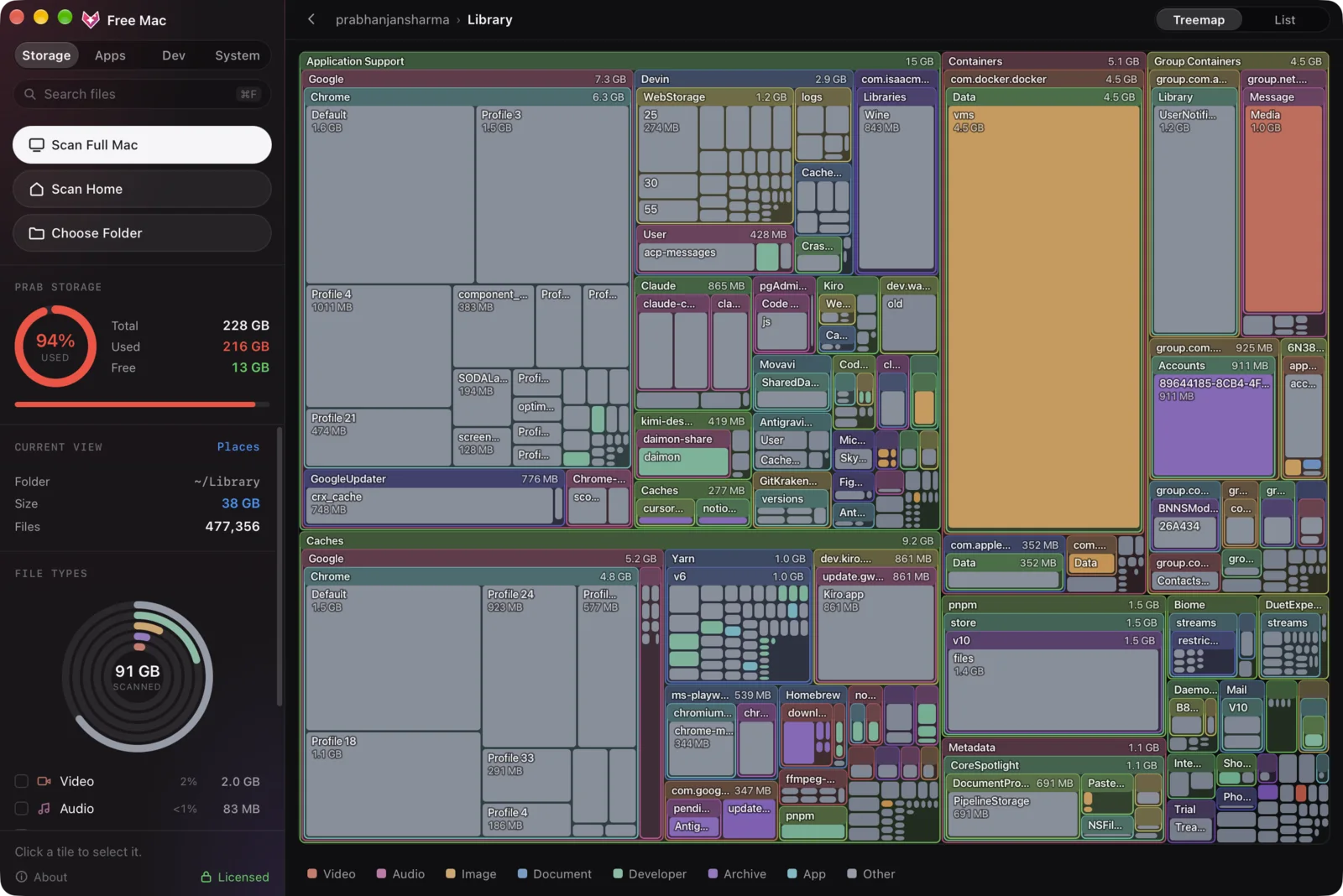
See your whole drive as one colourful map, then clear out the hidden large files quietly eating your space.
What it finds on a typical Mac
A tiny native app that makes a full drive obvious, and clearing it oddly satisfying.
The gigabytes Finder never shows you: forgotten downloads, stale caches, old disk images and build folders buried ten levels deep. Free Mac surfaces every one of them.
Your whole drive becomes one colourful map where a block's size is its size on disk, so the biggest problem is also the biggest shape.
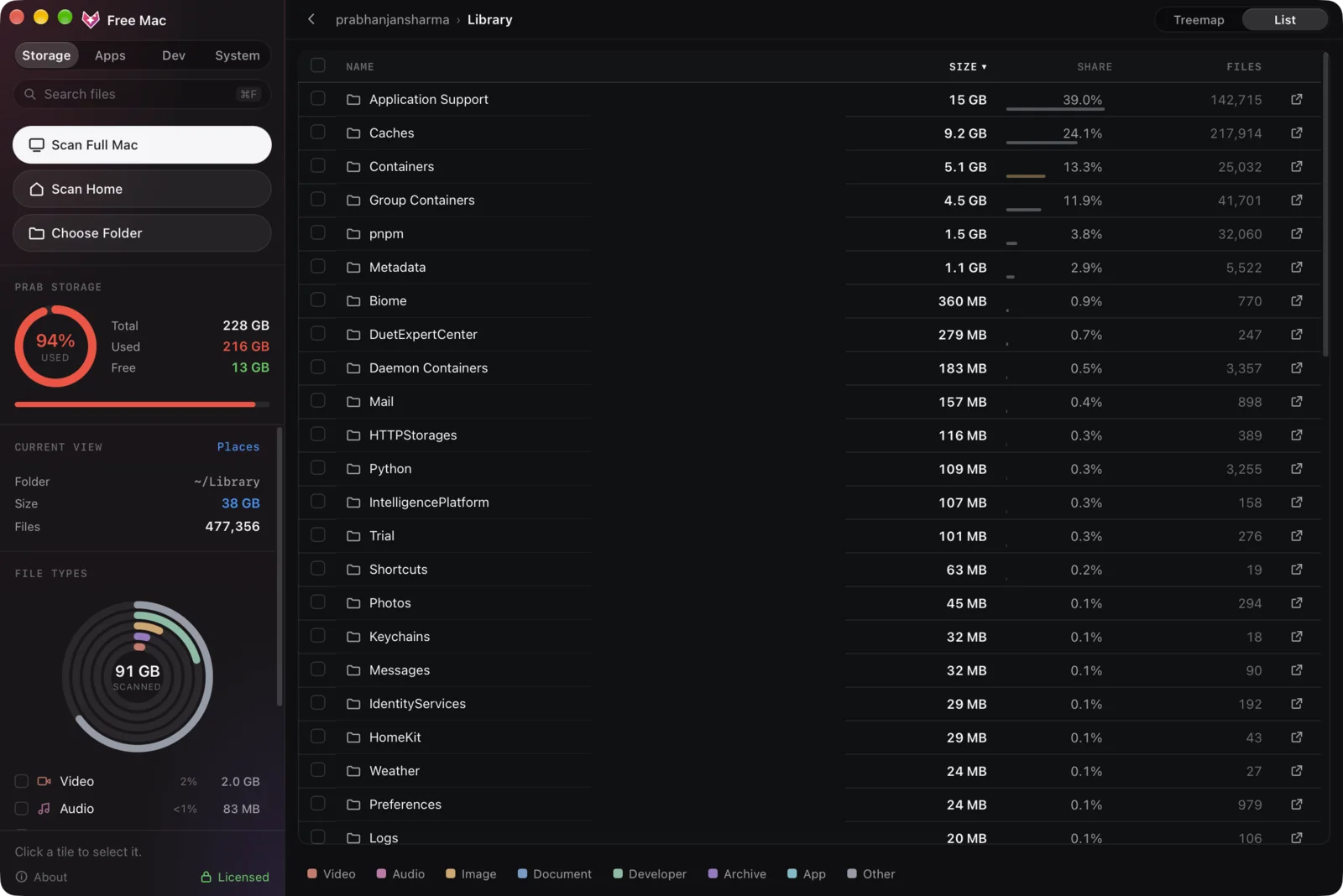
Dragging an app to the Trash leaves gigabytes behind. Free Mac finds the caches, containers and launch agents it scattered, then removes the lot together.
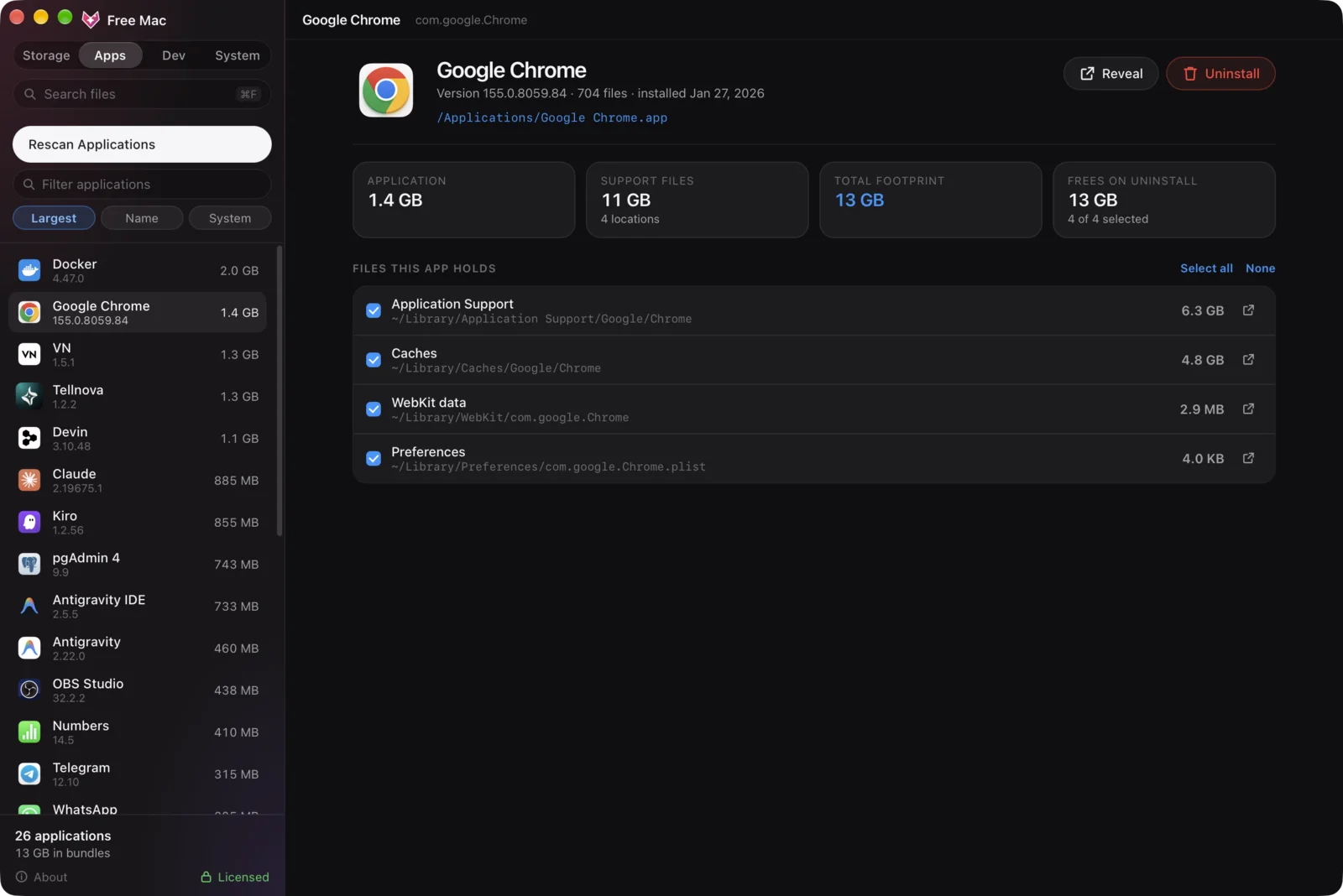
node_modules, Cargo target folders, DerivedData, npm and Gradle caches, virtualenvs. It finds them across every project, says what regenerates each one, and only counts a folder as build output when its manifest sits beside it.
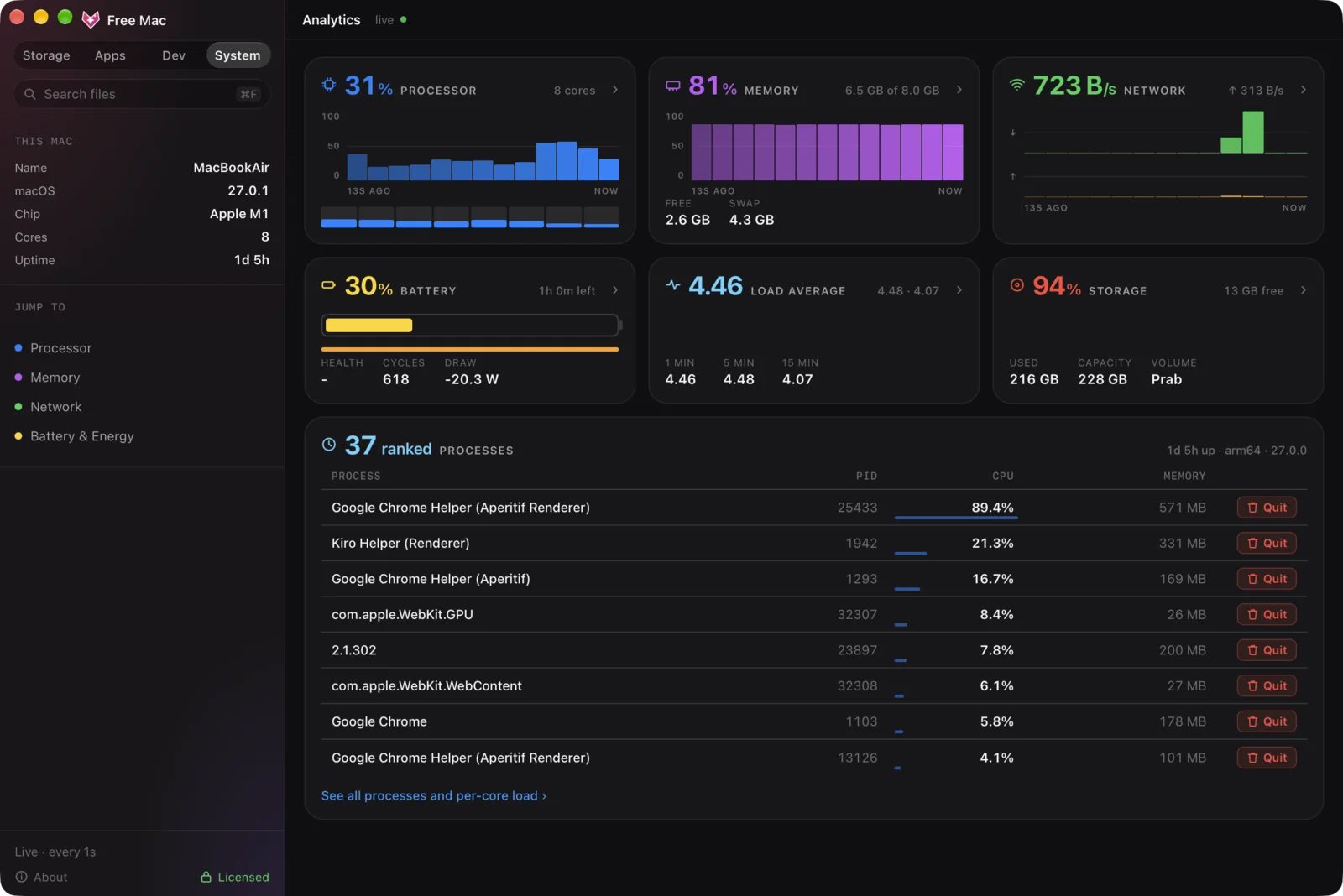
Processor, memory, network and battery, sampled once a second, with every tile opening into detail.
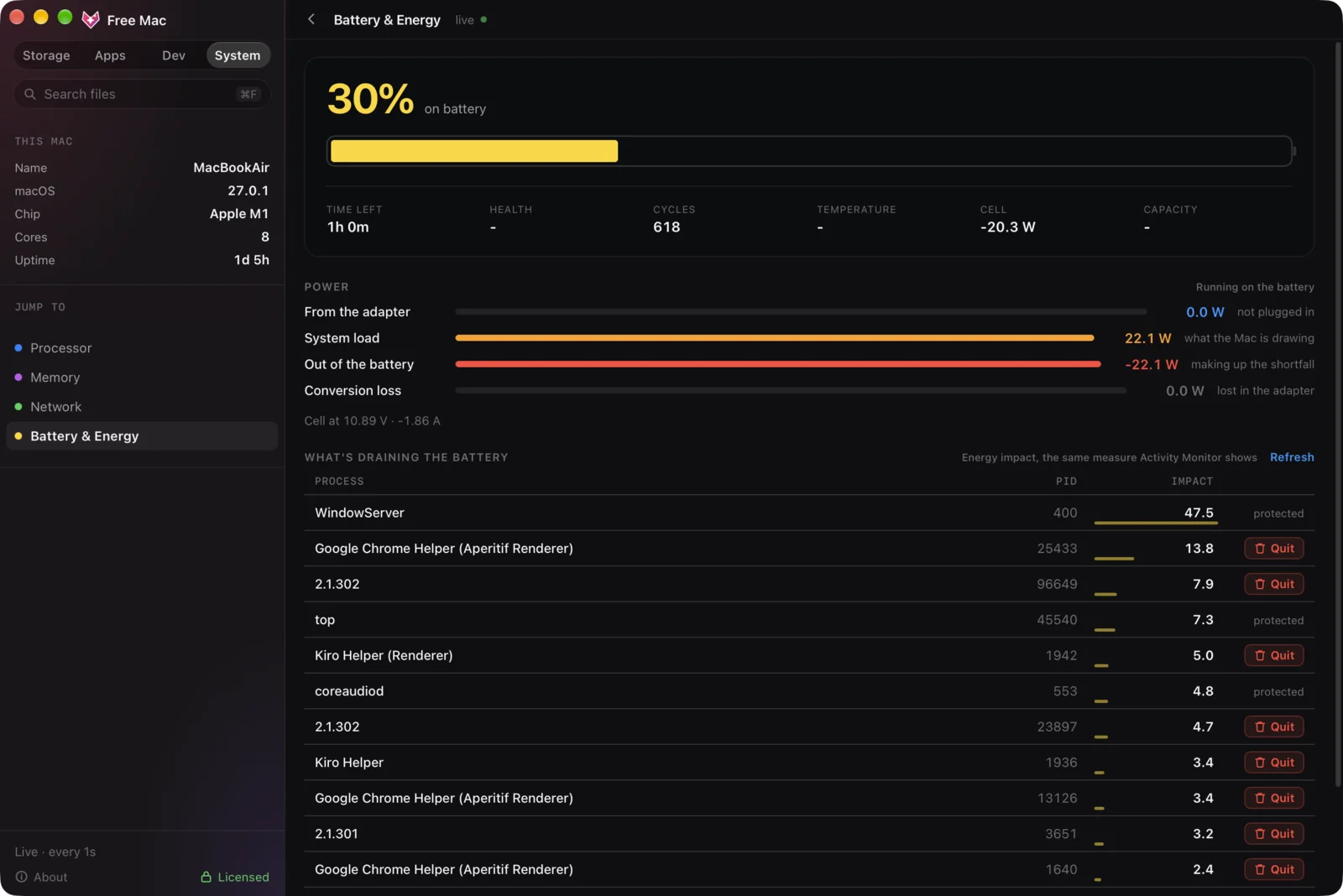
Energy impact per process, the same measure Activity Monitor reports, next to health, cycle count and where every watt is going.
Pick the blocks you do not need and hand them over. Everything goes to the macOS Trash first, so anything can be put straight back until you empty it.
An example developer Mac. Your blocks will be different.
One screen tells the story. Every folder is a block sized by what it actually costs you, nested inside its parent, with its total on the header. The ring in the sidebar splits the same scan by file type, so you can see at a glance whether it is video, build output or something you forgot about.
Dragging an app to the Trash leaves its caches, containers, preferences and launch agents behind, quietly, for years. Free Mac lists every application with what it really costs, then removes the bundle and the leftovers together.
Application Support/Google/Chrome without sweeping up Google Drive beside it.Build output and package caches are the quietest way to lose a drive. Free Mac walks your projects and the known cache locations, groups what it finds by the tool that made it, and says what regenerates each one before you decide.
target counts only next to a Cargo.toml.A full disk is rarely the only thing slowing a Mac down. The System tab reads processor, memory, network and battery once a second, and every tile opens into detail: which app is draining the battery, which one is saturating the network, and what you can quit.
Download it, point it at a folder, and you are already looking at the answer.
Grab the app and drag Free Mac into your Applications folder.
Pick any folder, or use the built-in Scan Home and Scan Downloads shortcuts.
Dive into the biggest block. Breadcrumb, Back, Esc and Backspace all navigate.
Send what you do not need to the Trash, and watch the gigabytes come back.
An honest table. The paid suites do more. This one maps your disk, for nothing, and then gets out of the way.
| Free Mac | macOS Storage pane | Paid cleaners | |
|---|---|---|---|
| Visual disk map | Yes | No, one category bar | Usually |
| Names hidden large files | Every one | Calls them System Data | Yes |
| Account required | None | None | Usually |
| Telemetry | None | Apple's | Typically on |
| Background daemon | None | System | Common |
| Download size | 11.6 MB | n/a | 100 to 300 MB |
Scan the whole Mac, read every map, find every leftover and every build cache without paying anything. A subscription unlocks moving things to the Trash.
$0forever, no account
$19.99every 6 months
One key unlocks one Mac. Activating checks it online once, then it works offline from then on. Cleaning keeps working for 14 days past a renewal, so a failed card never locks you out mid-clear.
Try every scan first. The app only asks for a key at the moment you press Trash, and it tells you exactly what it is about to remove.
Free Mac is built for the Mac, not squeezed into it. It opens instantly, uses a few megabytes of memory, and leaves nothing running when you close it. A disk tool should cost you less than the space it saves.
Everything that looks is free, forever, with no account and no trial timer: scanning any folder or the whole Mac, both views, the file-type filters, what each app really costs, the developer cache scan, file search and the live system readouts. A $19.99 every 6 months subscription unlocks the one thing that changes your disk, moving files to the Trash. You can scan as much as you like before deciding.
Neither, specifically. There is one universal app that runs natively on both M-series and Intel Macs, so there is no wrong choice to make.
Anything big that Finder will not show you in one place: Xcode DerivedData, node_modules folders, Docker disk images, iOS device backups, old installers and years of caches under ~/Library.
Finder can sort one folder by size. Free Mac measures every folder at once and draws the result, which is how a 40 GB problem stops hiding.
Yes. Every release is signed with a registered Apple Developer ID and checked by Apple before it reaches you, so macOS knows who made it and that nothing was changed on the way.
Drag it to Applications, then double-click it there. The first time, macOS asks whether you want to open an app downloaded from the internet. Click Open, and that is the last you will see of it. The install guide walks through it.
No. There is no account system, no telemetry, no crash reporter and no network client in the app at all. File names, paths and sizes are read, drawn, and forgotten when you quit. See the privacy page.
Deletions go to the macOS Trash, never a permanent rm, so anything you remove can be put straight back until you empty it. You can also Reveal in Finder first to look at an item in context before acting on it.
Those are polished commercial suites. DaisyDisk is a paid one-off, CleanMyMac is a subscription, and both do a lot more than map your disk.
Free Mac does one job: show you the map and let you act on it. The scan is free, it is 11.6 MB, and there is nothing to sign into. If you want an all-in-one tune-up utility, buy one of theirs. If you want to see where the space went, this is enough.
System Data is the catch-all bucket macOS uses for sleep images, local Time Machine snapshots, caches, logs, Xcode DerivedData, Docker disk images and device backups. Most of it lives under ~/Library. Scan that folder directly and the map will name the actual culprits instead of showing you a mystery grey bar.
macOS 10.15 Catalina and later. The app is built and used on Sonoma, Sequoia and Tahoe. Nothing is installed outside the .app bundle, so dragging it to the Trash removes it completely.
11.6 MB to download, about ten seconds to install, and you will know exactly where the space went.
Universal app · macOS 10.15 or later · free to scan · no account, ever