Installing Free Mac on macOS
1. Install the app
Open the downloaded Free-Mac-0.4.8-universal.dmg. A window appears with the Free Mac icon on the left and an Applications folder on the right. Drag Free Mac onto the Applications folder, then close the window and eject the disk image.
Open it from Applications rather than from that window. The disk image is only the delivery box, and the app vanishes with it when you eject it.
There is one build, and it runs natively on both Apple Silicon and Intel, so there is no version to choose between.
2. Open it
Double-click Free Mac in your Applications folder. The first time, macOS asks whether you want to open an app downloaded from the internet. Click Open. From then on it opens like any other app.
Every release is signed with a registered Apple Developer ID and checked by Apple before it is published, so macOS can confirm who made it and that nothing changed on the way to you. If you also like to check a download yourself, you can compare it against the published checksum.
Verifying your download
Every release is built in the open by GitHub Actions, and the installer served here is the exact file that build produced. If you want to check the copy you downloaded is byte-for-byte the same, run this and compare it against the checksum on the release manifest:
shasum -a 256 ~/Downloads/Free-Mac-0.4.8-universal.dmg3. Grant folder access when asked
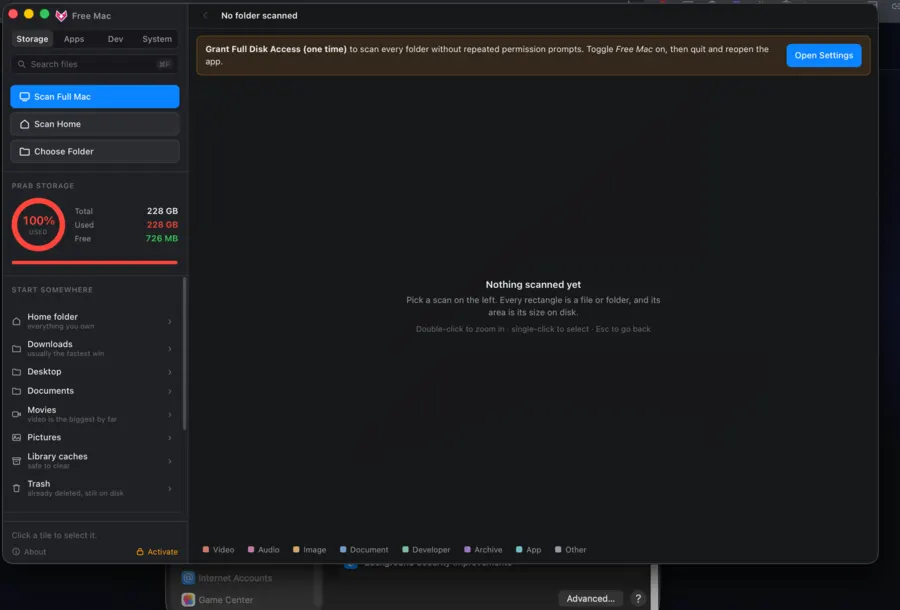
macOS gates Desktop, Documents, Downloads and removable volumes behind a per-app permission prompt. Allow the folders you want to scan, or grant Full Disk Access under System Settings → Privacy & Security if you plan to map the whole drive including ~/Library, which is where most hidden large files live. The app only reads names and sizes, and it never uploads anything.
Uninstalling
Drag Free Mac from Applications to the Trash. Nothing is installed outside the .app bundle. No daemons, no login items, no preference panes, no leftovers.
Still stuck?
Reach Prabhanjan Sharma on LinkedIn with your macOS version and what you saw, or head back to the FAQ.