Adobe's caches are larger than the applications, and there are four
Media caches, previews, autosaves and installer files accumulate across every Adobe app. Which are safe to clear and the settings that cap them.
My Mac was getting full, and the settings just said "system data" So I searched a bit and I found a nice app that shows what takes space + visualises it Result: I had 500GB in Adobe cache editing 💀
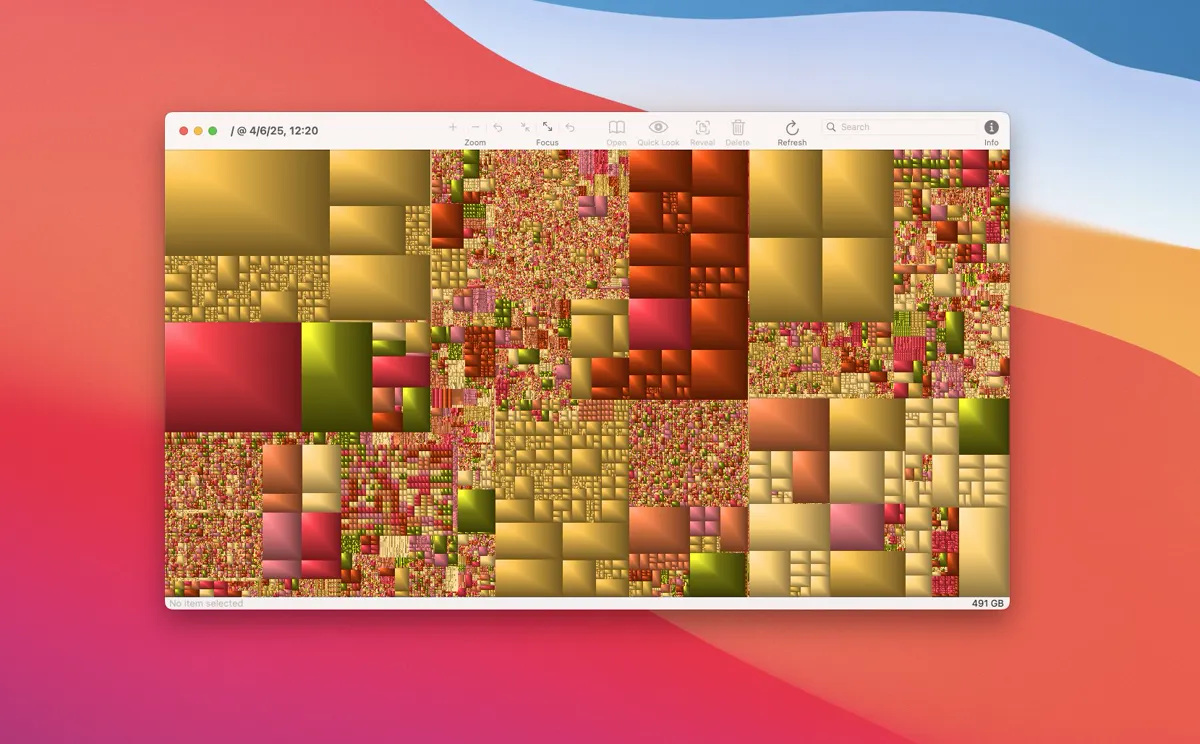
Creative software is generous with disk in a way that is mostly defensible: caches make a timeline scrub smoothly and previews make a large document open instantly. What is not defensible is that almost none of it is cleared when a project ends.
The four kinds, and where they are
du -sh ~/Library/Application\ Support/Adobe/* 2>/dev/null | sort -h | tail -10
du -sh ~/Library/Caches/Adobe* ~/Documents/Adobe* 2>/dev/null | sort -h| What | Where | Safe to clear |
|---|---|---|
| Media cache, from video apps | Application Support/Adobe/Common | Yes, regenerated on next open |
| Previews and autosaves | Beside the project, or in Documents | Autosaves only when the project is safe |
| Installer and update files | Application Support/Adobe and Caches | Yes |
| Scratch files | Wherever the scratch disk is set | Yes, when the app is closed |
The media cache is the big one
Premiere and After Effects write conformed audio and peak files for every clip they touch, and keep them indefinitely. On a machine that has edited a few projects this is routinely tens of gigabytes, and every byte of it regenerates from the source media.
There is a setting for it: in the app's preferences, Media Cache, there is an option to delete cache files older than a chosen number of days. Setting that once is better than clearing it by hand every few months.
Scratch disks, and why the disk fills mid project
Photoshop writes working data to a scratch disk, which defaults to your startup drive. On a large document that can be many gigabytes while the app is open, and it is released when the app closes cleanly. A crash can leave the file behind.
If space vanishes while you work and returns when you quit, that is the scratch disk rather than a problem. Pointing it at an external drive in preferences is the standard fix on a Mac with a small internal drive.
Applications you no longer have
Adobe apps leave a lot behind when removed, and the Creative Cloud app's own uninstaller is more thorough than dragging an app to the Trash. Check for folders belonging to apps you have already removed:
ls ~/Library/Application\ Support/AdobeAnything there for a version you no longer run is a leftover, which is the same pattern as any uninstall on a Mac. If video work is what fills the disk, render files and generated media covers the rest of that picture.
Common questions
Where is the Adobe media cache on a Mac?
Under ~/Library/Application Support/Adobe/Common, shared by Premiere and After Effects. It holds conformed audio and peak files for every clip touched, and it is regenerated from the source media whenever it is missing.
Is it safe to delete Adobe cache files?
Yes for the media cache and installer leftovers. Be careful with autosave files, which can be the newest copy of an unfinished project, and clear caches from inside the app where it offers the option.
Why does my disk fill up while using Photoshop?
Because Photoshop writes to a scratch disk while working, which defaults to your startup drive and can grow to many gigabytes on a large document. The space is released when the app closes cleanly, and the scratch location can be changed in preferences.
How do I stop the Adobe media cache growing?
In the application's preferences under Media Cache there is an option to delete cache files older than a set number of days. Turning that on caps the folder permanently rather than requiring a manual clear every few months.