Docker says it is empty and your Mac says it is full. Both are right
Docker Desktop stores everything in one growing disk image that does not shrink when you delete containers. Here is how to reclaim the space properly.
the biggest mistake you can make when buying a macbook pro is not having enough disk space. I'm constantly needing to prune docker images, delete node_modules of projects I don't use anymore, delete old video recordings for my yt channel.
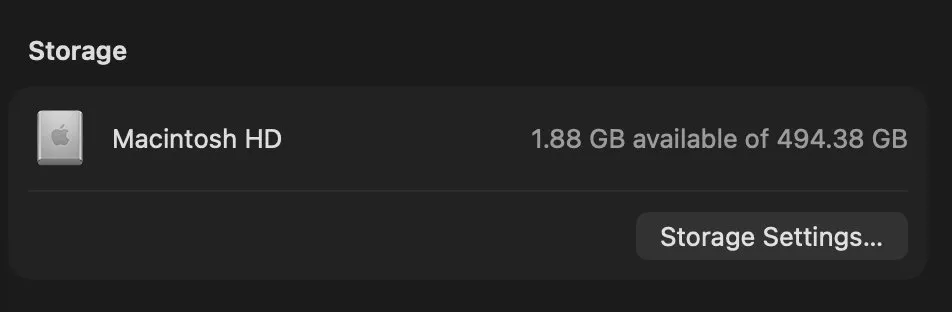
You run docker system prune, it reports several gigabytes freed, and the free space on your Mac does not move. Then you check Docker Desktop and it says you are using 4 GB while Finder insists something is holding 60. Nothing is broken. This is how Docker on macOS is built.
Why the space does not come back
Docker containers need a Linux filesystem, and macOS does not have one, so Docker Desktop runs a Linux virtual machine and gives it one large file to use as its disk. Everything lives inside that file:
~/Library/Containers/com.docker.docker/Data/vms/0/data/Docker.rawOn Apple Silicon you may see Docker.raw in a slightly different path, or a .qcow2 file on older versions. The behaviour is the same either way.
That file is sparse and grows but does not shrink. When you delete a container, Docker frees the space inside the virtual disk, which macOS cannot see. The file stays the size it reached at its high-water mark. So Docker is right that it is using 4 GB, and your Mac is right that a 60 GB file exists.
Checking the real size
du -sh ~/Library/Containers/com.docker.docker/Data/vms/0/data/*
docker system df
The first is what macOS sees. The second is what Docker thinks it is using. The gap between them is what you can reclaim.
Reclaiming it
In increasing order of aggression:
- Prune inside Docker first.
docker system prune -a --volumesremoves stopped containers, unused images, networks and volumes. This frees space inside the virtual disk, which is a prerequisite for anything else working. - Ask Docker Desktop to compact. Recent versions reclaim space automatically after a prune, and Settings has a disk image size control. Give it a few minutes; the file shrinks in the background.
- Reset the disk image. Settings, Resources, Advanced, and there is a control to delete and recreate it. This removes every image and container you have, and it is the one that reliably returns the file to near zero.
Why prune alone often disappoints
docker system prune is scoped to unused things. Images you still reference, volumes still attached, and the build cache are all left alone by the plain form. The build cache in particular grows quietly and is frequently the largest single item:
docker builder prune -aOn a machine that builds images regularly this alone can be tens of gigabytes.
Keeping it from happening again
- Cap the disk image size in Settings, Resources. Docker cannot exceed it, which converts a silent disk-filling problem into a visible Docker error you can act on.
- Prune on a schedule rather than when the disk is already full. A weekly
docker system prune -fis cheap. - Watch the build cache specifically, since it is excluded from the default prune.
Docker is usually the second largest developer consumer on a Mac after node_modules and around the same scale as Xcode's caches. Between the three, 100 GB is an ordinary total.
Related: Rancher Desktop taking up space on Mac.
Removing Docker altogether? Use its own uninstaller, because dragging the app to the Trash leaves the disk image and its helpers behind.
Common questions
Why is Docker.raw so large on my Mac?
Docker on macOS runs a Linux virtual machine and stores everything in one large disk image file. That file grows as you build and pull images, and it does not shrink when you delete them, because freeing space inside the virtual disk is invisible to macOS. The file stays at its largest size until it is compacted or recreated.
Does docker system prune free disk space on macOS?
It frees space inside Docker's virtual disk, but the file on your Mac often stays the same size. Recent Docker Desktop versions compact the image afterwards, which can take a few minutes. If the file still has not shrunk, deleting and recreating the disk image in Settings is the reliable option.
Is it safe to delete Docker.raw?
Deleting it removes every image, container and volume you have, so treat it as a full reset rather than a cleanup. Do it through Docker Desktop's Settings rather than by deleting the file in Finder, so Docker recreates it properly. Anything you need again can be pulled or rebuilt.