System Data is not a category, it is everything macOS could not label
What System Data on a Mac really holds, how much is normal, and how to clear it safely, with the sizes measured on a real Mac in October 2026.
Why would my Mac be holding to 621GB of system data? That's the size of 6 wikipedias.
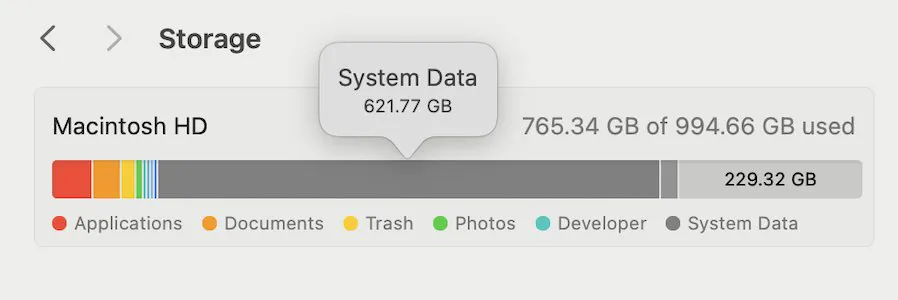
System Data is everything macOS cannot put in another storage category: caches, logs, snapshots, developer files, simulator downloads, on-device AI models and backups. You cannot delete it as one thing, but most of it can be shrunk safely, one item at a time, once you can see which item is big.
What is System Data on a Mac?
It is a leftover, not a thing. Storage settings sorts files into Applications, Documents, Photos, Mail and so on, and everything it cannot confidently place lands in System Data. Older versions of macOS showed the same bucket as Other or System. A large bar means a lot of unclassified files, not a fault in macOS.
Why is System Data so large?
Because several big, invisible things are added together under one label. This is what it was made of on one Mac measured on 14 October 2026, running macOS 27.0.1 with a 245 GB drive:
| What | Where | Measured | Safe to clear |
|---|---|---|---|
| iPhone simulator runtimes | /System/Library/AssetsV2 | 25 GB | Yes, with Xcode's own tool |
| Simulator devices | /Library/Developer/CoreSimulator | 10 GB | Yes, with Xcode's own tool |
| App caches | ~/Library/Caches | 9.2 GB | Yes, they rebuild |
| App support data | ~/Library/Application Support | 8.3 GB | Only for apps you removed |
| Siri, Photos and language models | /System/Library/AssetsV2 | About 6 GB | By turning features off |
| Temporary files | /private/var/folders | 4.5 GB | Restart first |
| Local Time Machine snapshots | Invisible in Finder | None | Yes, with tmutil |
How much System Data on a Mac is normal?
There is no fixed number. On a 512 GB drive, 40 to 100 GB is common. Past that, the cause is almost always one of the large items below rather than many small ones, so measure before you delete anything.
| What | Where | Typical when the bar is large | Safe to clear |
|---|---|---|---|
| Developer build output and caches | ~/Library/Developer, project folders | 20 to 150 GB | Yes, it regenerates |
| Simulator runtimes and devices | /System/Library/AssetsV2, /Library/Developer | 10 to 60 GB | Yes, with Xcode's tool |
| Application caches | ~/Library/Caches | 5 to 40 GB | Yes |
| Application support data | ~/Library/Application Support | 5 to 40 GB | Only for apps you removed |
| APFS local snapshots | Invisible, managed by macOS | 5 to 80 GB | Yes, with the right command |
| Virtual machine and container images | Varies by tool | 10 to 100 GB | Yes, per tool |
| iPhone and iPad backups | ~/Library/Application Support/MobileSync | 5 to 60 GB | Only if you have another copy |
| Mail attachments and downloads | ~/Library/Mail | 1 to 20 GB | Careful, this is real data |
How do I see what is in System Data?
Storage settings will not open it, and Finder hides the Library folders where most of it lives (Command Shift full stop shows hidden files). These three commands measure the parts that usually matter, and change nothing:
du -sh ~/Library/* 2>/dev/null | sort -rh | head -15
du -sh /System/Library/AssetsV2/* /Library/Developer/* 2>/dev/null | sort -rh | head -10
tmutil listlocalsnapshots /
Read the lists before deleting anything. Two or three lines usually account for most of the total, and the long tail measured in megabytes is not worth touching.
Can I delete System Data on a Mac?
Not as one thing, because it is a label rather than a folder. You delete what is inside it, and how safe that is depends on the item: caches and build output are safe and come back, while app support data and Mail are real data.
- Do not delete files inside
/Systemby hand. Large parts of it can be reclaimed, such as simulator runtimes and AI models, but only through the tool or setting that put them there. Deleting by hand fights macOS, and most of it is protected anyway. - Do not clear all of
~/Library/Application Support. It holds live data for apps you use, and for some of them it is the only copy of your settings and local content. Removing leftovers from apps you have uninstalled is the targeted version of that idea. - Do not trust the storage bar to update immediately. It is cached and often lags the real figure by minutes or hours.
How do I clear System Data on a Mac?
Work down this list, cheapest first, and measure again after each step:
- Restart. It clears temporary files, which were 4.5 GB on the Mac above.
- Thin local snapshots, if
tmutil listlocalsnapshots /lists any. The command is below. - Clear app caches in
~/Library/Caches, one app's folder at a time. They rebuild as you use the apps. - If Xcode was ever installed, remove simulator runtimes and devices. The simulator guide has the commands. If Xcode is already gone, those commands go with it, so the only supported way is to reinstall Xcode (a large download), remove the runtimes, then remove Xcode again.
- Remove old iPhone and iPad backups you have another copy of: iOS backups on a Mac.
- Clear developer build output if you write software: DerivedData and node_modules often outweigh everything else here.
- Remove leftovers from apps you have deleted, the targeted way, not all of Application Support.
tmutil listlocalsnapshots /
tmutil thinlocalsnapshots / 10000000000 4
The second line asks macOS to reclaim about 10 GB of snapshots with urgency level 4. It is the supported route and far safer than deleting anything by hand. For the on-device models, see how much space Apple Intelligence uses; for the system asset folder itself, the Apple asset packs.
Related: DocumentRevisions-V100, temporary files and Developer in Mac storage.
Common questions
What is System Data on a Mac?
System Data is the category macOS uses for every file it cannot sort into another one, so it collects caches, logs, developer files, simulator downloads, local snapshots, on-device AI models and virtual machine images together. A large System Data figure does not indicate a fault.
Can I delete System Data on a Mac?
Not as one thing, because it is a label rather than a folder. You delete the specific things inside it. Caches and build output are safe and regenerate; app support data and Mail attachments are real data and are not.
How much System Data on a Mac is normal?
There is no fixed number. On a 512 GB drive, 40 to 100 GB is common. Beyond that it is usually one large item, such as developer files, simulator runtimes, a virtual machine or local snapshots.
How do I clear System Data on a Mac with Terminal?
Measure first with du -sh ~/Library/* and tmutil listlocalsnapshots /. Then thin snapshots with tmutil thinlocalsnapshots / 10000000000 4 and clear app caches in ~/Library/Caches. Avoid deleting anything inside /System by hand.
Why is System Data so big when I do not have Xcode?
Xcode leaves its simulator runtimes and devices behind when you remove it. On one Mac measured in October 2026 they were 35 GB of System Data with no Xcode installed, and the command that deletes them is removed along with Xcode.