Purgeable space, and why deleting files frees nothing
You removed fifty gigabytes and the Mac reports the same free space. Purgeable space is usually why, and local snapshots are usually the cause.
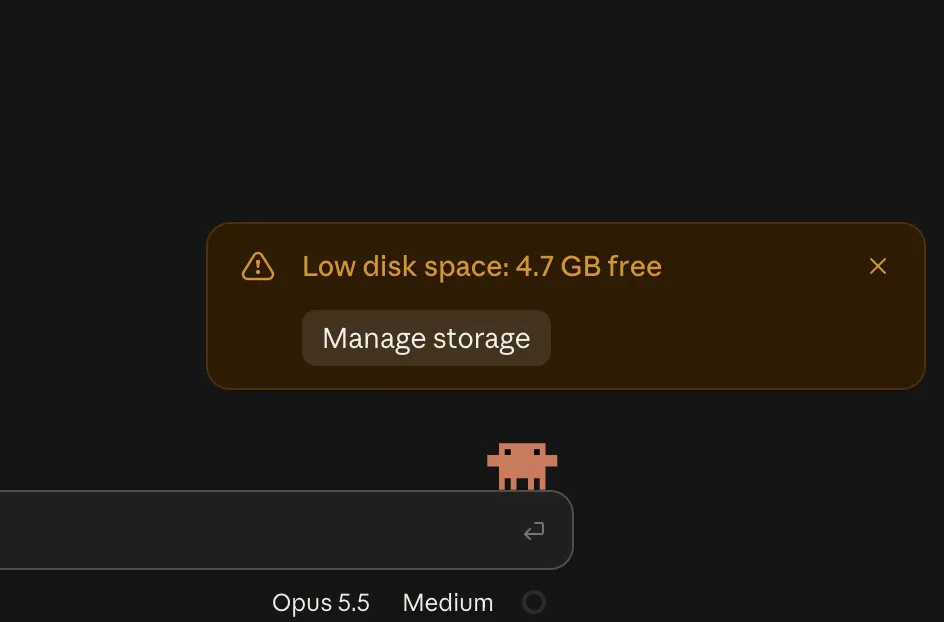
🚨 Claude users 🚨 BROOO 😭😂 Claude Opus 5.5 is telling me I’m running out of disk space. 4.7 GB LEFT??? 💀 Meanwhile, my Mac has plenty of storage.
You empty the Trash after removing a large folder, look at the storage bar, and nothing has changed. Nothing is broken and the files really are gone. The space is being held as purgeable, which means macOS is counting it as used until it has a reason to release it.
What purgeable actually means
Purgeable is space the system believes it can reclaim on demand but has not yet reclaimed. It is made of two things, and the proportions matter because only one of them is worth acting on:
- Local snapshots. Time Machine keeps hourly snapshots of the volume on the volume itself, so a file removed an hour ago still exists inside a snapshot.
- Cached content macOS can fetch again, such as iCloud files already uploaded and downloadable copies of media.
The design is deliberate and mostly helpful: when an application genuinely needs space, macOS releases purgeable space automatically. The frustration is that it will not do it just because you are looking at a number.
Seeing how much of it is snapshots
This is the useful measurement, and it takes one command:
tmutil listlocalsnapshots /Each line is one snapshot, with the date and time it was taken in the name. A Mac backing up hourly will typically hold around twenty four of them, and together they can account for tens of gigabytes on a drive where a lot has changed recently.
Making the space come back now
Snapshots expire on their own, usually within a day. If you need the space before then, ask the system to thin them rather than deleting them one by one:
tmutil thinlocalsnapshots / 20000000000 4That asks for roughly 20 GB back, with an urgency of 4, which is the level that will remove snapshots rather than merely trying. Raise the number for more space. The command reports each snapshot it removes.
Why the numbers disagree everywhere
Purgeable is the single biggest reason the free space figure differs between places on the same Mac. Finder tends to count it as available because it can be reclaimed. The storage bar in System Settings tends to count it as used because right now it is. Both are honest, and they are answering different questions.
It also explains the specific case of a Mac that is full immediately after an update, which has its own guide: disk full after a macOS update.
When purgeable is not the answer
If snapshots come back tiny and the space still has not returned, the files were not where you thought. Start from the storage bar, which will at least tell you the category, and then look at that category by actual file size.
Related: Couldn't modify partition map.
Common questions
What is purgeable space on a Mac?
Space the system counts as used but believes it can reclaim on demand. It is mostly local Time Machine snapshots stored on the same volume, plus cached content that can be downloaded again, such as iCloud files already uploaded.
Why is my Mac not freeing space after deleting files?
The removed files are usually still inside local snapshots taken before the deletion. Snapshots expire on their own within about a day, or you can ask for space back immediately with tmutil thinlocalsnapshots.
Is it safe to delete local snapshots?
Yes. They are a convenience for recovering a file from the last day on this machine, not your backup. Removing them has no effect on backups stored on an external drive or network location.