~/Library is where Mac storage goes to hide
Finder hides it by default and it is often the second largest thing on the drive. Here is what is inside, what is safe to clear and what is not.
Mac tip of the year: Go to "~/Library/Caches" and delete everything inside I just reclaimed 500gb of storage 🤯😤
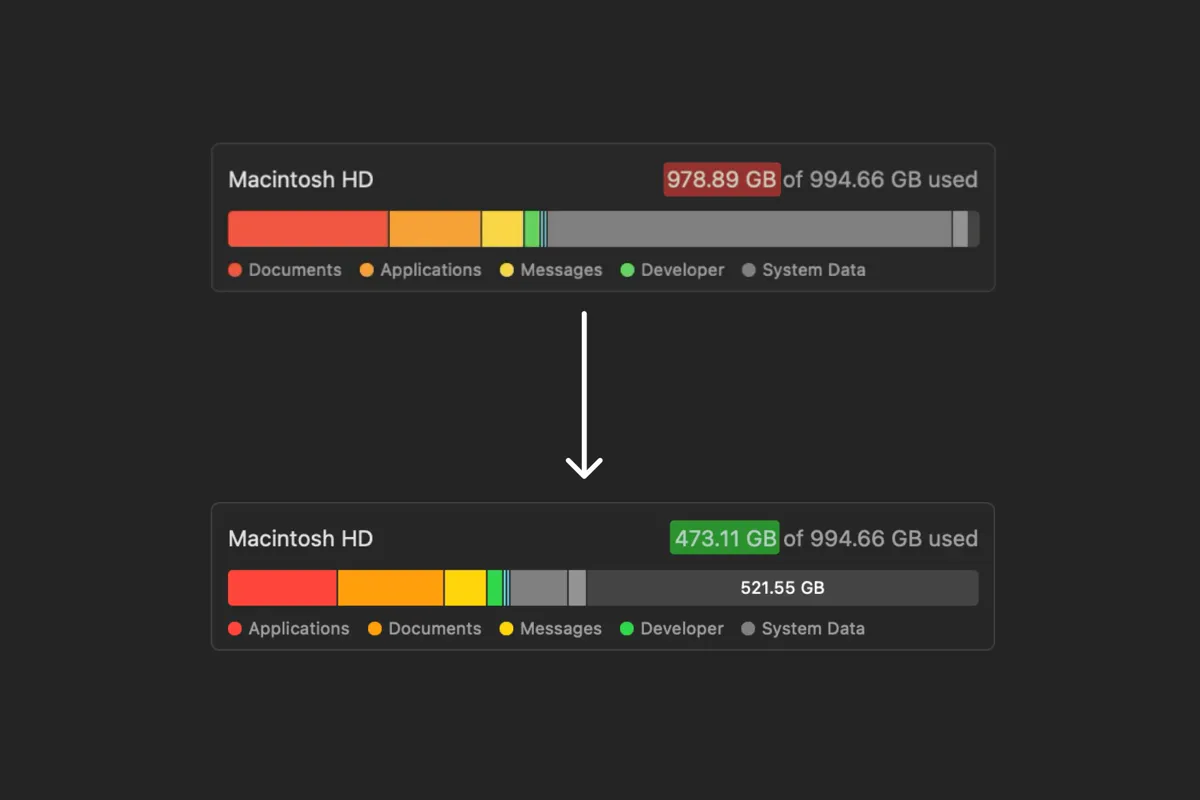
Finder hides ~/Library by default, which means most people have never seen the folder that is frequently the second largest thing in their home directory. On a machine a few years old it is commonly 20 to 60 GB.
Press Command Shift G in Finder and type ~/Library to open it, or hold Option while clicking the Go menu. Then run this, which is faster than clicking around:
du -sh ~/Library/* 2>/dev/null | sort -rh | head -15What is in there, and what it is worth
| Folder | What it is | Clear it? |
|---|---|---|
Caches | Rebuildable data apps keep to be faster | Yes. The safest space on the drive |
Application Support | Real app data: profiles, databases, local content | Only for apps you removed |
Developer | Xcode build output, simulators, device support | Yes, if you have Xcode |
Containers | Sandboxed app data, App Store apps | Same rule as Application Support |
Group Containers | Data shared between an app and its extensions | Same rule |
Mail | Downloaded messages and attachments | Careful. This is your mail |
Logs | Diagnostic output | Yes, and it is usually small |
Preferences | Settings as plist files | Leave it. Kilobytes, and clearing it resets apps |
Caches, the free win
~/Library/Caches exists so apps do not redo work. Browsers cache rendered assets, music apps cache artwork, developer tools cache downloads. All of it is reproducible by definition.
du -sh ~/Library/Caches/* 2>/dev/null | sort -rh | head -10
rm -rf ~/Library/Caches/*
The visible cost is that a few apps are slower the next time you open them, once. That is the whole downside.
Application Support, the trap
This is the folder people clear next, and it is the one that loses data. It holds live content for apps you use every day, and for some of them it is the only copy of your settings and local files.
The safe version of the same idea is targeted: remove folders belonging to apps that are no longer installed. That is a problem worth its own guide, because macOS leaves them behind on every uninstall and never cleans them up.
How this shows up in the storage bar
Almost everything on this page counts as System Data in Apple's storage screen, which is why that bar is so large and so unhelpful. Library is where a good chunk of it physically lives.
Related: Kodi thumbnails taking up space on Mac.
Looking for temp files rather than caches? How to delete temp files on a Mac covers /private/var/folders and /private/tmp, and why a restart is the safe way to clear them.
Common questions
Is it safe to delete Library Caches on a Mac?
Yes. Everything in ~/Library/Caches is data an app can rebuild, which is the definition of a cache. The only visible effect is that some apps take slightly longer the next time you open them. Quit your applications first so nothing is holding a cache open while you remove it.
How do I open the Library folder on a Mac?
Finder hides it by default. Press Command Shift G and type ~/Library, or hold the Option key while clicking the Go menu, which reveals a Library entry. Both open the Library folder inside your home directory, which is the one that matters.
What is the difference between Caches and Application Support?
Caches holds data an app can regenerate, so deleting it costs only time. Application Support holds the app's actual data, such as profiles, local databases and downloaded content, and for many apps it is the only copy. Clear Caches freely and treat Application Support as real data.