The safest order to free 100 GB on a Mac
Reclaiming real space is a sequence, not one action. This is the order that gives back the most for the least risk, with what to expect at each step.
Freed up over 550 GB on my Mac in a few hours with Opus 5.5. Went from 7 GB free to 560. I did it in two passes. First I cleared out the junk: caches, old build files, installers I'd forgotten about.
Most advice for freeing space is a list of places to look. That is the wrong shape, because the places are not equally safe and not equally large, and the usual result is an hour spent clearing three gigabytes of caches while a sixty gigabyte folder sits untouched.
This is the same job as an ordered sequence. Work down it and stop when you have enough. Everything near the top is regenerable, which means the worst outcome is that something is slower once.
1. Reclaim what the system is already holding
Before removing anything, check whether the space is already there. Local snapshots routinely hold tens of gigabytes, and they cost nothing to release. See purgeable space. Typical return: 10 to 50 GB, in under a minute, with no decisions to make.
2. Build output, if you write code
This is the largest safe category on a developer's machine by a wide margin, and every byte of it regenerates:
- Dependency folders across every project, which are commonly 20 to 80 GB in total.
- Xcode derived data and device support, often 20 GB or more.
- Container images and the disk file behind them, which do not shrink on their own.
- Emulator images from Android Studio, several gigabytes each.
- The package manager cache, usually 5 to 15 GB.
3. Device backups
One phone backup is 30 to 60 GB, and Macs commonly hold several for devices nobody owns any more. This is the single largest item on most non-developer machines: iPhone backups on your Mac.
4. Applications you do not open, and their leftovers
Dragging an app to the Trash leaves its support files behind, and those are frequently larger than the app. Doing it properly is covered in uninstalling leaves files behind. Typical return: 1 to 10 GB, and it is permanent rather than regenerating.
5. Caches, once the above is done
Caches are where most guides start and where this one puts them fifth, because they are small relative to the effort and they come back. They are still worth clearing when you know which are safe: what is really in Library Caches.
6. Duplicates, last
Duplicate hunting is last because it needs the most judgement per gigabyte recovered. It is genuinely worth doing on a photo library: finding duplicates without paying for an app.
What a realistic run looks like
| Step | Typical return | Comes back? |
|---|---|---|
| Snapshots | 10 to 50 GB | Yes, harmless |
| Build output | 20 to 80 GB | Yes, on next build |
| Device backups | 30 to 60 GB each | No |
| Apps and leftovers | 1 to 10 GB | No |
| Caches | 2 to 10 GB | Yes, quickly |
| Duplicates | Varies | No |
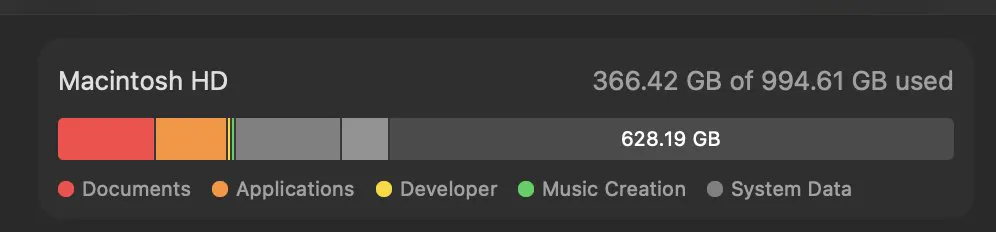
On a developer's Mac the first two steps usually reach a hundred gigabytes on their own. On everyone else's, step three normally does it. If none of that applies, the storage bar will at least point at the category worth opening: reading it category by category.
Common questions
What should I delete first to free space on a Mac?
Start with space the system is already holding rather than anything you own. Local snapshots often account for tens of gigabytes and release in under a minute with no decisions. After that, build output and old device backups are the two largest safe categories.
How do I free up 100 GB on a Mac?
In practice it is two or three items rather than many small ones. On a machine used for development, dependency folders, build caches and container images usually reach it between them. On other machines, old iPhone backups and unopened applications normally do.
Is it safe to delete caches and build folders?
Yes, in the sense that they regenerate. A cleared cache means an application or a build is slower once while it rebuilds. Move them to the Trash rather than removing them permanently, so a mistake stays recoverable until you empty it.