How to live with a 256 GB Mac without fighting it every week
A small drive is workable with four decisions made once. What to keep local, what to stream, and where the space always goes on a small Mac.
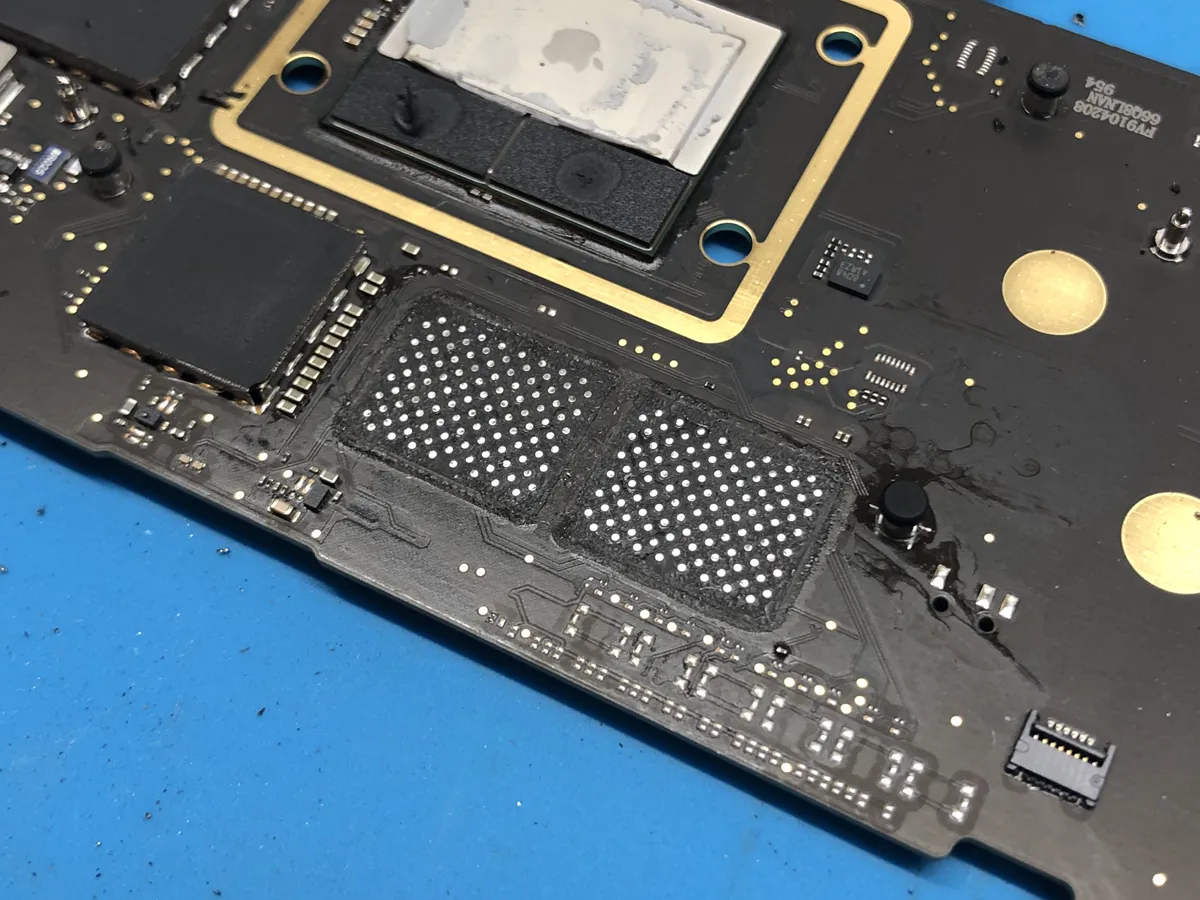
Just finished yet another M1 soldered storage upgrade, this time on a 13" MacBook Pro! This machine was sent in to me to have this upgrade done, and was upgraded from the base 256GB all the way to 2TB! The upgrade went without a hitch.
On a 256 GB Mac, macOS and a normal set of applications take a substantial share before you have saved anything. That is not a fault, it is the arithmetic, and the difference between a small Mac that works and one that nags you weekly is four decisions made once rather than twenty small cleanups.
Decision one: where the photo library lives
A photo library is the biggest personal folder on most Macs and it only grows. The options are to keep it local and accept the space, to turn on the option that keeps smaller versions locally and full resolution in iCloud, or to move the library to an external drive.
All three are reasonable, and the trap is doing none of them and letting it grow until the disk is full. What the Photos library actually holds covers the sizes, and moving one to an external drive covers the Option launch step that catches people out.
Decision two: stop syncing everything
Every sync service defaults to a full local copy. On a small drive that is the single most valuable setting to change, because it converts a permanent cost into an on demand one.
du -sh ~/Library/CloudStorage/* ~/Dropbox* 2>/dev/null | sort -hTurn on streaming or online only files in each client, as covered in what sync folders keep locally.
Decision three: one external drive, used properly
A small fast external drive costs less than one upgrade tier from Apple and holds more. Archive finished work, video projects and virtual machines there, and keep the internal drive for what you are working on this month.
The cost comparison, priced with a check date, is in iCloud storage against an external drive. The short version is that the cheapest option is usually reclaiming what you already have, and after that a drive is cheaper than years of subscription.
Decision four: know your own three
On any given Mac, three folders account for most of the growth, and they are different per person. Find yours once:
du -xh -d 1 ~ 2>/dev/null | sort -h | tail -10For a developer it is usually project folders and caches. For a photographer it is the library. For someone who works with video it is exports they have already delivered. Knowing which three saves you from checking twenty.
The maintenance that is actually needed
- Empty the Trash, including on external drives.
- Clear Downloads, which is the easiest space on any Mac.
- Delete old device backups after a new phone has settled in.
- Check the three folders you identified above.
Common questions
Is 256 GB enough for a MacBook?
It is workable for most people if photos and files are not all kept locally, and difficult if you edit video or keep large project folders. The deciding factor is not the drive size but whether a photo library and sync folders live on it in full.
How do I free up space on a small MacBook?
Make four decisions once: where the photo library lives, whether sync services keep full local copies, whether an external drive holds finished work, and which three folders grow fastest for you. That beats repeated small cleanups.
Is an external drive better than paying for iCloud?
For archiving finished work, usually yes, since a drive is a one off cost and holds more. iCloud is better for files you need on several devices. The cheapest option is normally reclaiming space you already have.
How much free space should I keep on a 256 GB Mac?
Aim for 20 to 30 GB rather than a percentage. That covers a macOS update, local snapshots and working space, and it keeps you out of the range where things start failing rather than merely being tight.