System Data, purgeable, container, snapshot: what the words actually mean
The vocabulary macOS uses for storage, defined plainly, with what each term means for the space on your disk.
Apple really needs to start a task force fixing "Storage" for both iOS and macOS. 2021 M1 MacBook Pro, 2TB space, latest macOS, 1.86 TB of "System Data" Also, Messages and Mail should not be listed here, those are (and should be) optional apps I don't use.
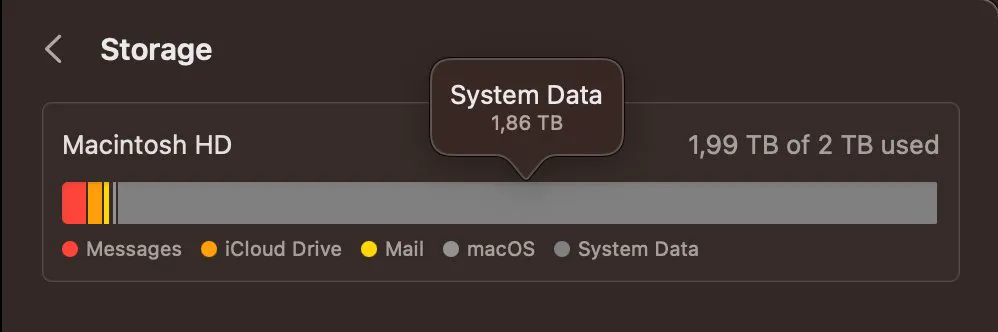
Storage on a Mac is described with words that sound technical and are rarely defined. Each of them has a plain meaning, and knowing them turns most storage confusion into an ordinary problem.
The terms
| Term | What it actually means |
|---|---|
| System Data | The category macOS puts everything it cannot classify into. Not a folder |
| System | macOS itself, on a separate sealed volume you cannot write to |
| Purgeable | Space held by snapshots and caches that macOS will release when something needs it |
| Available | Free space plus purgeable space. Optimistic, and why installers fail |
| Container | The APFS pool your volumes share space inside |
| Volume | One file system inside a container. Your data, the system, Preboot, Recovery |
| Snapshot | A frozen record of the file system at a moment, holding onto deleted files |
| Clone | Two files sharing the same data on disk until one changes |
| Sparse file | A file that reports a size larger than the space it uses |
| Firmlink | A link that makes the system and data volumes look like one disk |
The three that cause most of the confusion
Available includes purgeable, which is why Finder can show 30 GB free while an installer refuses to run. System Data is not a folder, which is why there is nothing to open when the storage screen shows it as the largest item. And a container is shared, which is why several volumes each appear to have the whole disk available.
Why the numbers never quite agree
- Finder counts available space, including purgeable.
dfreports the volume's own view, which differs again.duadds up what it can walk, and misses snapshots entirely.- Disk Utility reports the container, including all volumes.
- The storage screen sorts into categories, which is a fifth answer.
None of them is wrong. They answer different questions, and a discrepancy of tens of gigabytes between them is normal on a Mac with Time Machine enabled.
Where each term is covered in full
System Data has its own guide, as do purgeable space and the other volumes in your container. If you arrived here because a number does not add up, those three cover almost every case.
Common questions
What is System Data on a Mac?
The category macOS uses for everything that does not fit another category: caches, logs, snapshots, application support files and system assets. It is a label rather than a folder, which is why it cannot be opened.
What does purgeable space mean?
Space currently held by snapshots and caches that macOS will release automatically when something needs the room. It is included in the available figure, which is why an installer can fail on a disk that looks like it has space.
What is an APFS container?
A pool of storage that several volumes share. Your data volume, the sealed system volume, Preboot and Recovery all live in one container and draw from the same free space.
Why do Finder, Disk Utility and du all report different sizes?
Because they measure different things: available space including purgeable, the whole container, and what a folder walk can reach. Differences of tens of gigabytes are normal with snapshots present.