The 2 GB sleepimage file, and the swap files next to it
macOS keeps a hibernation file the size of your memory, plus swap files that grow under pressure. What they are for and why deleting them is pointless.
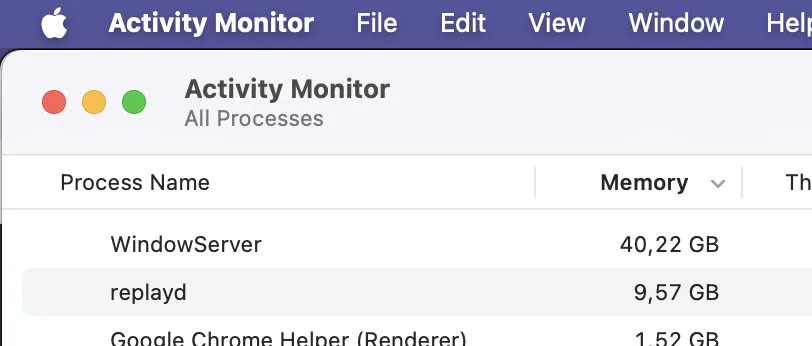
i kind of figured out why my mac keeps both running out of disk space and randomly crashing, while also just being plain slow i think the windowserver and replayd just swap until they oom?? no idea why this happens though
In /private/var/vm there are two kinds of file, both created by macOS, both regularly blamed for a full disk, and neither worth deleting. Knowing what they are takes two minutes and saves you from advice that makes things worse.
sleepimage: memory, written to disk
When a Mac goes to sleep, it can write the entire contents of memory to disk so that everything survives if the battery runs out completely. That file is sleepimage, and it is sized to your physical memory: 8 GB of memory means an 8 GB file, 16 means 16.
So it is large on exactly the machines that have the most memory, and it is not optional in any way you would want. Delete it and macOS recreates it at the next sleep, minus whatever protection it was providing in between.
Swap files: memory pressure, on disk
The swapfile0, swapfile1 files next to it are what macOS uses when memory runs out. They appear under pressure, they can grow to several gigabytes, and they shrink again. This is the mechanism working, and the fix for large swap files is not disk cleanup, it is having fewer things open at once.
ls -lh /private/var/vm
sysctl vm.swapusage
The second line prints how much swap is actually in use rather than how much space is reserved. If used swap is near zero, the files are just sitting there and are costing you nothing in performance.
Why the advice to delete them is bad
| What you are told | What happens |
|---|---|
| Delete sleepimage to free space | macOS recreates it at the next sleep |
| Disable hibernation to save the file | Works, and the Mac loses state if the battery dies |
| Delete swapfiles | macOS recreates them when memory is short |
| Reboot to clear swap | This one is true and free |
There is a real setting behind the second row, and it is a genuine trade rather than a trick: on a desktop that never runs on battery the argument is different from a laptop. That is a decision about power behaviour, not about storage, and it should be made on those terms.
What to do instead
Restart the Mac. Swap is cleared, temporary files go with it, and you get an honest picture of what is really using the disk. Then look at the folders that grow and never shrink, which is where a full disk actually comes from: what System Data is made of and the order to free 100 GB cover those in sequence.
The sleep settings behind the sleep image are in pmset, and what keeps a Mac from sleeping at all in sleep prevented.
Common questions
What is the sleepimage file on a Mac?
It is a copy of the contents of memory, written to disk so a sleeping Mac can recover its state if power is lost completely. It is sized to the memory installed, so a Mac with 16 GB of memory has a 16 GB sleepimage.
Can I delete the sleepimage file to free space?
You can, and macOS recreates it the next time the Mac sleeps. The only way to remove it permanently is to change the hibernation setting, which is a decision about what happens when the battery runs out rather than a storage decision.
Why does my Mac have swap files?
Because memory filled up and macOS moved less used pages to disk. They appear under pressure and shrink afterwards. Running sysctl vm.swapusage shows how much swap is actually in use rather than how much space the files occupy.
How do I clear swap files on a Mac?
Restart. Swap is rebuilt from scratch on boot, which is the only supported way to clear it, and it costs nothing. Deleting the files by hand while the system is running is not a good idea and does not help.