Your startup disk is almost full, and what that warning is not telling you
The warning appears at a fixed threshold, names nothing, and offers Manage. Here is what it actually means and the order that clears it fastest.
If the storage is almost full on your Mac, there's an easy way to free up some space. Here's how.
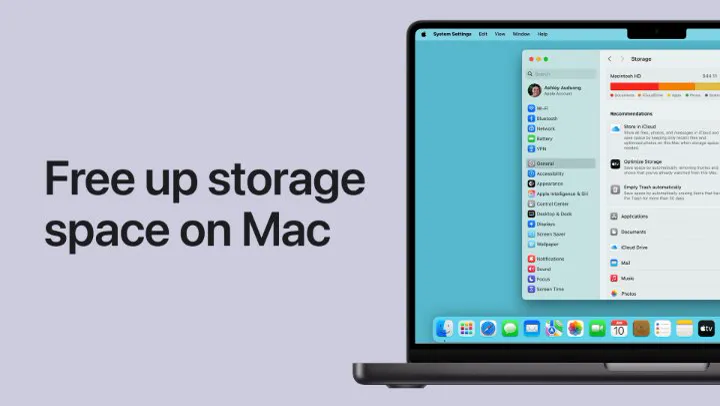
The dialog says your startup disk is almost full, offers a Manage button, and names nothing at all. It is the least useful error in macOS, not because it is wrong, but because it appears at a threshold rather than because of anything in particular.
What actually triggered it
macOS raises the warning when free space falls below a fraction of the volume. Nothing specific happened. Whatever crossed the line last is almost never what filled the disk, which is why the warning cannot name it.
The important consequence is that the warning is late. By the time it appears, the disk has usually been filling for weeks, and macOS has already been quietly deleting things it can recreate to hold it back.
Why the Mac gets slow at this point
macOS uses free disk as swap when memory runs out. On a nearly full disk it cannot, so an application that would have paged out simply waits, and everything feels slow at once. This is the one case where clearing space genuinely does speed a Mac up. Nothing else about cleaning does.
The fastest order out of it
- Reclaim what the system already holds. Local snapshots often account for tens of gigabytes and release in under a minute. See purgeable space.
- Check for old device backups. One iPhone backup is 30 to 60 GB, and most Macs hold several for phones nobody owns. See iPhone backups.
- If you write code, look at build output. This is the largest safe category on a developer's Mac by a wide margin. See the safest order to free 100 GB.
- Then read the storage bar properly, which tells you the category rather than the file. See reading it category by category.
What the Manage button does and does not do
Manage opens the same Recommendations panel as System Settings. Two of its four suggestions free real space, one moves the problem into a subscription, and one is a scheduled chore that frees nothing today. Which is which is covered in what the recommendations actually do.
If you need space in the next sixty seconds
When something is refusing to install and you need room right now, in this order:
- Empty the Trash, if you already know what is in it.
- Restart. This clears swap and some caches, and on a Mac that has been up for weeks it is worth a few gigabytes on its own.
- Ask the system to release snapshots, which is the largest quick win and costs nothing:
tmutil thinlocalsnapshots / 20000000000 4.
Those buy an hour. The list above them is what stops the dialog coming back next week.
Common questions
What does startup disk almost full mean on a Mac?
Free space on the volume macOS boots from has fallen below a threshold. It is triggered by the level rather than by any particular file, which is why the warning cannot tell you what filled the disk and why the last thing you saved is almost never the cause.
Why is my Mac slow when the disk is full?
macOS uses free disk space as swap when memory runs short. On a nearly full disk it cannot, so applications that would have paged out wait instead. This is the one case where freeing space genuinely makes a Mac faster.
What should I delete first when the startup disk is full?
Start with space the system already holds rather than your own files. Local snapshots often release tens of gigabytes in under a minute. After that, old iPhone backups and, on a developer's Mac, build output are the two largest safe categories.