Time Machine is storing backups on the disk it is backing up
Backups live on the external drive, but Time Machine also keeps snapshots on the Mac itself. That is why a backup drive can be full and the Mac fuller.
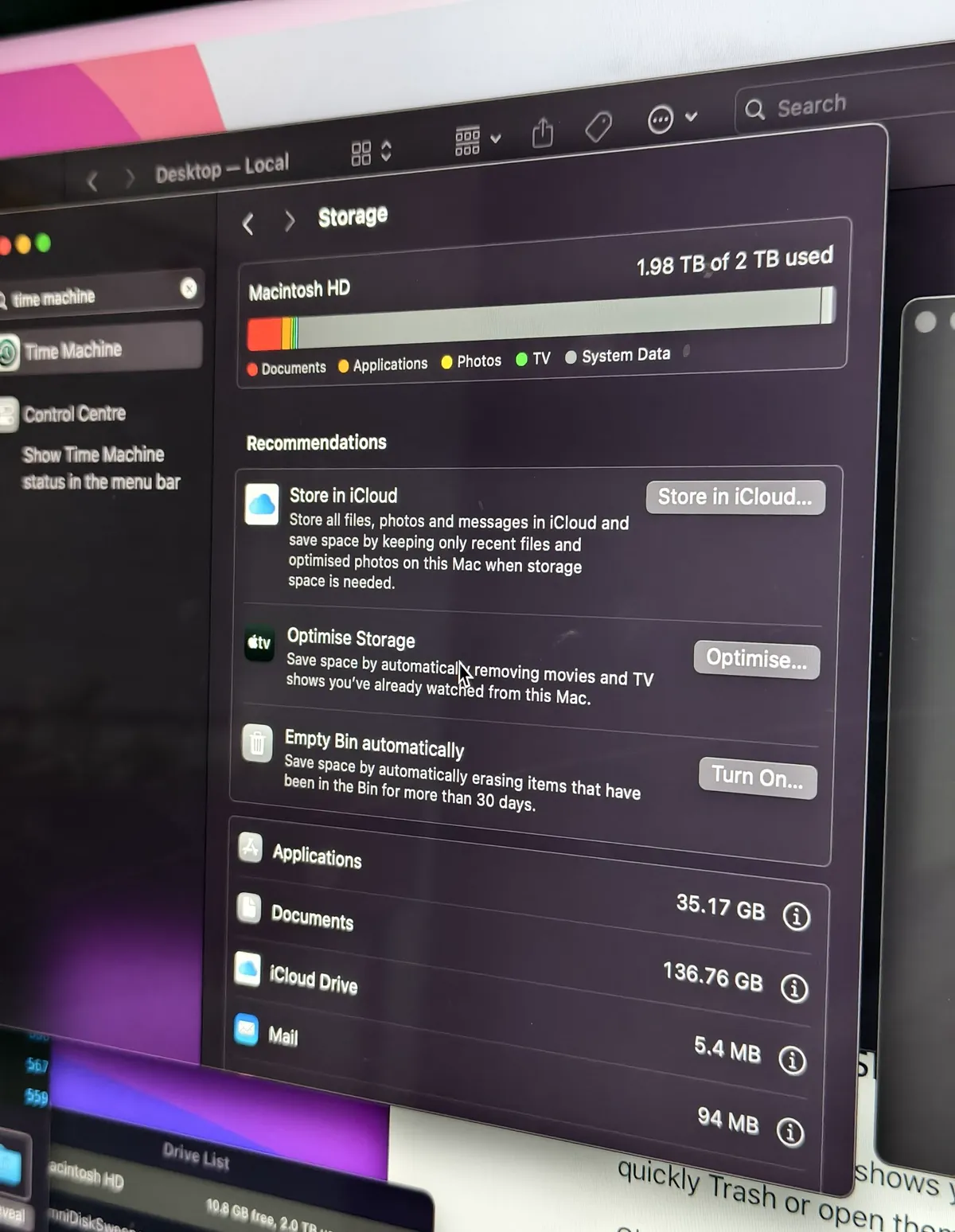
⚠️ Help Needed! Our Mac Studio M2 Max has run out of storage, and apparently it's the System Data which has taken a whopping 1.76TB data out of the total 2TB storage. Is there any way to free up this storage? 1TB+ data for System Storage is MADNESS. 😳
Almost everyone assumes Time Machine writes only to the external drive. It also keeps hourly snapshots on the internal disk, so that a file deleted an hour ago can be recovered when the backup drive is not plugged in. Useful, and the reason a Mac can be short of space for backups of itself.
The two places, and only one is obvious
| Where | What it holds | Visible as |
|---|---|---|
| The external drive | The full backup history | Space used on that drive |
| The internal disk | Local snapshots, roughly the last 24 hours | Purgeable, or nothing at all |
The second row is the one that causes confusion. It is counted as used by the storage bar and as available by Finder, which is why the two disagree. That mechanism has its own guide: purgeable space.
Seeing what is held on the Mac itself
tmutil listlocalsnapshots /One line per snapshot, dated. A Mac that has been busy since the last backup can hold tens of gigabytes here. They expire on their own, usually within a day.
When the external drive is full
This is normal and not a failure. Time Machine fills the drive and then deletes the oldest backups to make room, which is the design. A backup drive sitting at 95 percent is working correctly.
It only becomes a problem when the drive is too small to hold a useful history. The rule of thumb is a backup drive two to three times the size of the data being backed up. Below that, history is measured in weeks rather than months.
Making Time Machine use less of the Mac
- Exclude what regenerates. In Time Machine settings, Options, add the folders that rebuild themselves: build output, dependency folders, container images. This shrinks both the backup and the snapshots, and it is the single most effective change on a developer's Mac.
- Back up more often rather than less. Snapshots exist to cover the gap since the last backup, so a Mac that backs up regularly holds fewer of them.
- Do not turn off local snapshots to save space. They release automatically when something needs the room, and they are the only way to recover a file when the drive is elsewhere.
The folders worth excluding
Every one of these is regenerable, and together they are often most of what makes a backup slow and large: node_modules across every project, Xcode derived data, simulator runtimes and devices, and container images.
Related: The backup disk image could not be created.
Time Machine's process, and why it gets busy, is explained in backupd.
Common questions
Does Time Machine use space on the Mac itself?
Yes. As well as writing to the external drive, it keeps local snapshots on the internal disk covering roughly the last day, so a file can be recovered when the backup drive is not connected. They expire on their own, usually within 24 hours.
Why is my Time Machine drive always full?
That is how it is designed. Time Machine fills the drive and then removes the oldest backups to make room, so a backup drive sitting near full is working correctly. It only matters if the drive is too small to hold a useful length of history.
What should I exclude from Time Machine?
Anything that regenerates: build output, dependency folders, container images and simulator files. Excluding them shrinks both the backup and the local snapshots, and costs nothing because a build recreates them. Never exclude something you wrote.