How much free space should a Mac have, and what happens when it does not
The honest answer is a range and a reason, not a number. What macOS needs the space for, and the point where a full disk starts causing problems.
It is very important not to fill up the storage drive on the new MacBook Neo. It can cause the computer to chug and slow down significantly. Especially, if a person tends to push resources and use swap memory, it might even cause a crash if the storage is too full.
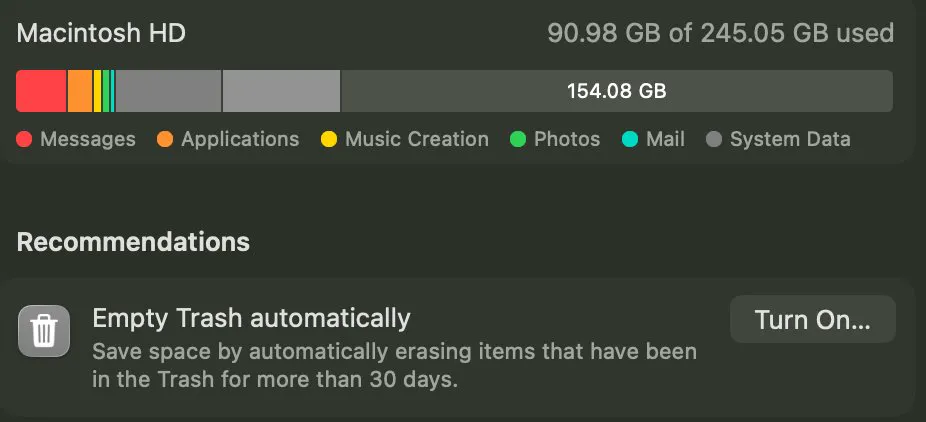
The advice you will find is between 10 and 20 percent, given with no reason attached. The reason matters more than the number, because it tells you which side of the range you are on.
What the space is actually for
- Updates. A macOS update needs room for the download and the install at once, and that is tens of gigabytes rather than the size of the download.
- Snapshots. Time Machine keeps local snapshots on the internal disk between backups. They are automatically thinned when space runs short, but thinning is a reaction, not a plan.
- Virtual memory. When memory fills, macOS writes swap files to the disk. A disk with no room has nowhere to put them.
- Working files. Editing video, building software or importing photos all need scratch space that appears and disappears.
None of those is about the drive being slower when it is full, which is the usual explanation and the least useful one. Modern SSDs do slow down as they approach capacity, but you will notice the four things above first.
A number you can act on
| Free space | What it means |
|---|---|
| Under 5 GB | Updates fail, apps that need scratch space misbehave, macOS starts warning |
| 5 to 20 GB | Working, but a macOS update will need clearing first |
| 10 to 15 percent of the drive | Comfortable. Snapshots and swap have room |
| Over 25 percent | Nothing to do. Space is not your problem |
On a 256 GB MacBook, 10 percent is 25 GB and that is genuinely tight; aim higher if you can. On a 2 TB drive, 10 percent is 200 GB and holding that much back is wasteful. The percentage is a rule of thumb that breaks at both ends, which is why the absolute numbers above are more useful.
Checking what you have
df -h / /System/Volumes/DataThe Data line is the one that matters, since that is where your files live. Be aware that the figure includes purgeable space, so the number macOS reports as available can be optimistic by whatever the snapshots are holding. Purgeable space explains why that gap exists and how to see it.
If you are under the line
Getting 20 GB back is usually two or three decisions rather than twenty. Old device backups, an unused virtual machine, a video project, or a developer cache are the categories that produce a large number quickly, and the order to free 100 GB works through them from safest to most involved.
Common questions
How much free space should I leave on a Mac?
Between 10 and 15 percent of the drive is comfortable, but the absolute numbers matter more at both ends. Under about 5 GB things start to fail, and above 25 percent free there is nothing to fix. On a small drive aim for at least 20 to 30 GB regardless of percentage.
Does a full SSD slow down a Mac?
An almost full SSD does write more slowly, but that is rarely what you notice first. Failed updates, thinned Time Machine snapshots and no room for swap files cause visible problems well before the drive's own speed becomes the issue.
How much space does a macOS update need?
Considerably more than the download, because the installer needs room to unpack and apply at the same time. Plan for tens of gigabytes free rather than the size shown next to the update, and clear the space before starting rather than during.
Why does my Mac say it has space when it does not?
Because the available figure includes purgeable space, which is mostly local Time Machine snapshots that macOS will release when something needs the room. It is real space, but it is not free immediately, which is why an installer can fail on a disk that claims to have room.