The disk is full and there is nothing to delete. Where it actually went
When Finder shows a few gigabytes of files and macOS says the disk is full, the space is in four places Finder never shows you.
Can someone explains me WTF is System Data on Mac? 588 GB. It eats all my storage and this is not my cache, I checked and I have max 40GB of cache in my Library.
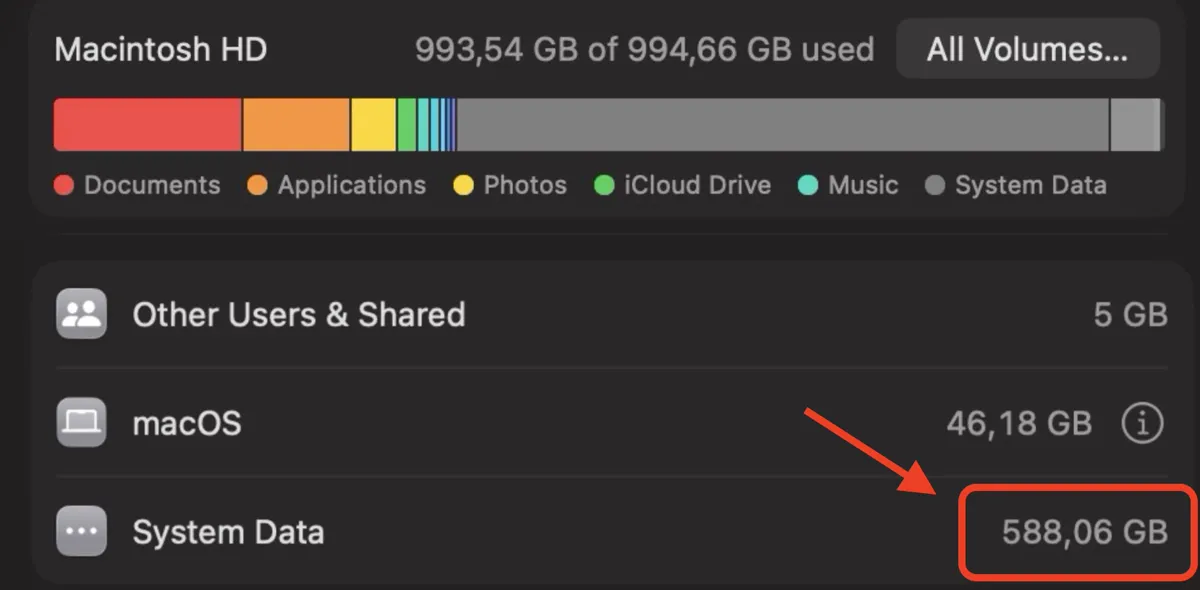
You have added up Documents, Desktop, Downloads and Pictures and it comes to 40 GB. macOS says 480 of 500 GB are used. Nothing you can see accounts for the difference, and no amount of tidying Finder changes it. This is a specific situation with a short list of causes.
The reason it feels impossible is that Finder deliberately hides three quarters of the disk. Everything below is real, ordinary and countable, once you know where to look.
Where it goes, in order of how often it is the answer
- Your Library folder. Hidden by default, and on a working Mac it is routinely the largest thing in your home folder. Caches, application support, containers and device backups all live there.
- Local snapshots. Time Machine keeps backups on the internal disk between external backups. They are invisible, they can be tens of gigabytes, and deleting files does not immediately reclaim what a snapshot holds.
- System Data. The macOS storage screen shows a size and no way in, which is why it is the most searched category on any Mac.
- Another user account, or an old one. Space used by a second account does not appear anywhere in your own Finder windows.
The command that ends the mystery
This walks your entire home folder including everything hidden, and prints the largest items last:
du -xh -d 1 ~ 2>/dev/null | sort -h | tail -15If ~/Library is at the bottom of that list, go one level deeper into it with the same command. Two or three rounds of this reaches the actual folder every time. To include the parts of the disk outside your home folder, which is where other accounts and system files sit, run it against the root of the data volume instead:
sudo du -xh -d 1 /System/Volumes/Data 2>/dev/null | sort -h | tail -15Checking for the invisible cases
Two of the four causes above will not show up in any folder walk, because they are not stored as ordinary files. Snapshots are listed with their own command:
tmutil listlocalsnapshots /Each line is a snapshot holding some amount of space that macOS counts as purgeable rather than free. What purgeable space is explains why the number in Finder disagrees with the number in Disk Utility, and how to make macOS release it.
Making Finder show you the hidden half
In any Finder window, press Command, Shift and the full stop key together. Hidden files and folders appear, including your Library. Press it again to hide them. This is the single most useful shortcut for this problem and almost nobody is told about it.
Once Library is visible, the folders worth opening are Application Support, Caches, Containers and Developer. What is in Caches and what System Data is made of cover what each one holds and what can go.
Common questions
Why is my Mac full when I have no files?
Because Finder hides your Library folder by default, and on most Macs that folder is larger than Documents, Desktop and Downloads combined. Local Time Machine snapshots and the System Data category account for most of the rest, and neither appears as ordinary files.
How do I see hidden files on a Mac?
Press Command, Shift and the full stop key in any Finder window. Hidden files and folders become visible, including your Library folder, and the same shortcut hides them again. From Terminal, du and ls include hidden folders by default.
Can another user account use my disk space?
Yes, and none of it shows in your own Finder windows. Old accounts left behind after a migration are a common cause of space that seems to belong to nobody. Running du against /System/Volumes/Data with sudo counts every account rather than just yours.
Why does deleting files not free up space on my Mac?
Usually because a local Time Machine snapshot still references the deleted data, so the space becomes purgeable rather than free. macOS releases it when something needs the room, which can be minutes or hours later.